
Computed (Hidden)
Use Computed (Hidden) to calculate a value (or a list) from earlier answers without showing anything to the respondent.
Computed questions never appear in the live survey flow. They still run in the background and feed:
- Segmenting and routing with Survey Logic & Branching
- Quota Management conditions (and the survey codebook)
- Piping and Recall into later prompts and help text
- Derived variables (scores, totals, thresholds, eligibility flags)
What it looks like
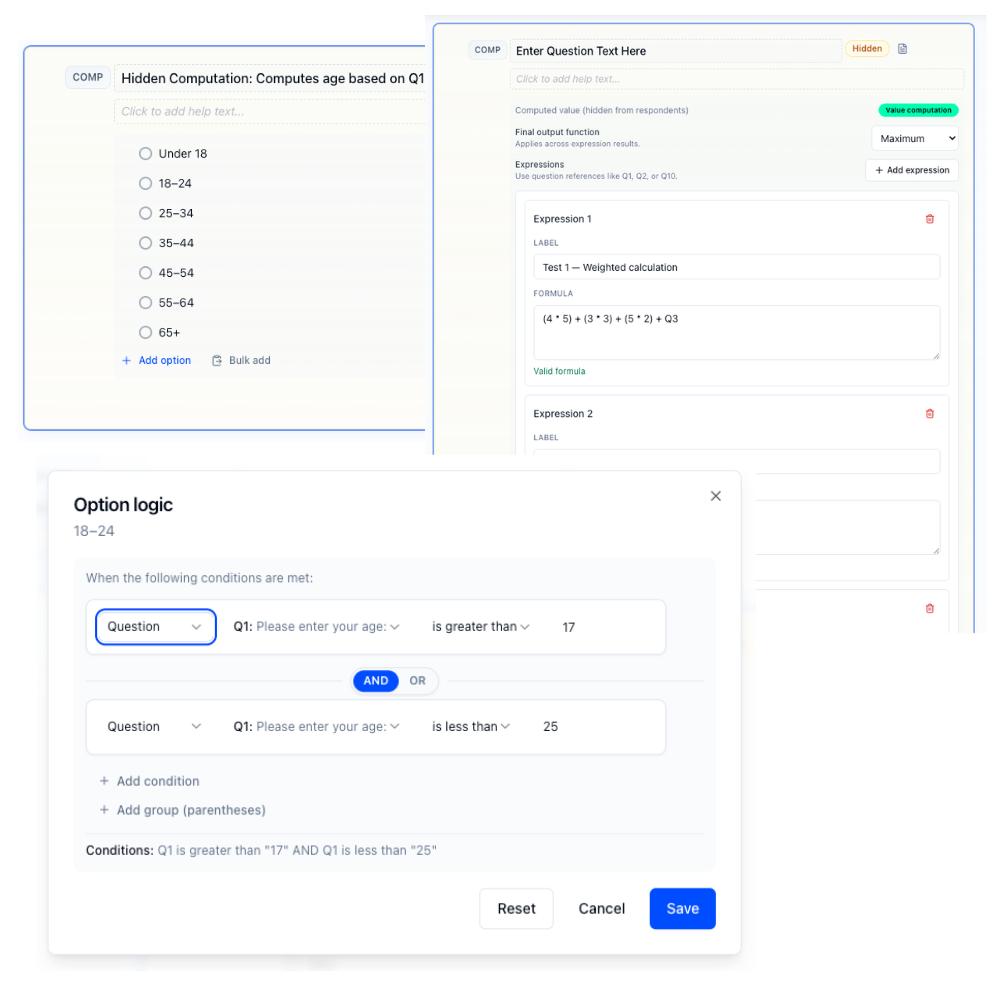
In the Survey Builder you’ll see a Computed block with a preview that the output is auto-calculated. Respondents never land on that page—even if the question’s hidden flag was somehow unset.
How to create
Open your survey in the Survey Builder.
Click Add Question and select Computed (Hidden).
In the Computed Settings, choose the computation type:
- Value computation
- Computed list
Configure the inputs and options.
Use Preview/Test to confirm your computed outputs behave as expected.
Value computation
Value computation generates a numeric output from one or more formulas.
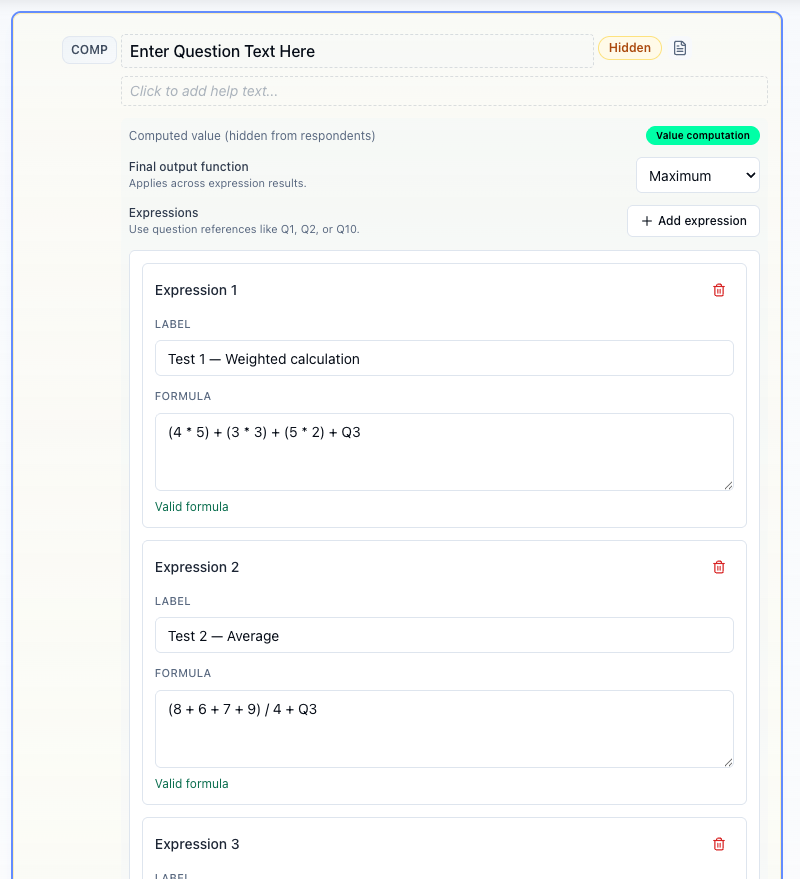
In the Survey Builder, formulas are edited inline on the computed question card. Next to each Formula field, Build opens a Build formula dialog so you can pick question refs, field/cell parts, operators, and number literals without memorizing tokens. Typing the formula by hand still works.
How formulas work
Formulas are math expressions that reference earlier questions by the label in the builder sidebar.
Q1 still works. If you renamed the question to COMP1, H1, or Score, use that label. Quali-Fi also accepts the positional Q# (from question order) when that slot is not already taken by another label.
Examples:
Q1
Q1 + Q2
(Q3 * 2) - Q4
COMP1 + H1
Supported math:
+add-subtract*multiply/divide- Parentheses
( )
Build formula dialog
Use Build when you want the picker to assemble the expression:
- Open Build beside the Formula field.
- Choose a prior question (whole answer), a multi-field part (
Q#.fN), or a Side by Side cell (Q#.iN.aM). - Insert operators and number literals as needed.
- Click Apply — the plain formula string lands in the Formula field (same save path as typed formulas).
Multi-field and side-by-side references
When an answer has more than one numeric part, bare Q1 still sums every numeric leaf Quali-Fi can read. To isolate one part, use a more specific reference:
| Reference | Meaning |
|---|---|
Q1 | Whole answer (numeric leaves summed when there are multiple parts) |
Q1.f1, Q1.f2, … | One field on a multi-field Short Text or Long Text question (1-based; same order as piping {{Q1.f1}}) |
Q1.i1.a2 | One Side by Side cell: item (row) 1 × attribute (column) 2, in builder order |
Years in field 1 and months in field 2 → total months:
Q1.f1 * 12 + Q1.f2Same idea on a Side by Side grid (Item A, text columns for years and months):
Q1.i1.a1 * 12 + Q1.i1.a2Side-by-side text cells coerce numeric strings. Choice columns resolve when the selected choice id or label is numeric; otherwise that part is treated as missing.
Note
There is no piping token for a single Side by Side cell yet ({{Q1.i1.a1}} is not supported). Cell refs are for formulas only. Use Piping and Recall for computed results and for multi-field text.
Expressions (multiple formulas)
You can add multiple expressions to the same computed question.
Useful when you want:
- Multiple sub-scores on one computed question
- A fallback chain (for example, “use Q2 if Q1 is missing”)
Each expression can have an optional label (for your reference and for the Insert recall menu).
Final output function
If you add more than one expression, choose a Final output function to combine the expression results into one final value:
- Sum
- Average
- Minimum
- Maximum
- First non-null
If Final output function is None:
- Each expression still computes and is saved
- There is no combined
finalscore - Piping bare
{{COMPn}}only works when there is exactly one expression (it uses that expression’s value). With multiple expressions and Final = None, pipe{{COMPn.e1}},{{COMPn.e2}}, or similar instead
What question types can be referenced?
When you reference Q1 (or Q1.f2 / Q1.i1.a2), Quali-Fi tries to convert that answer—or that part of the answer—into a number.
Works best with numeric-style questions like:
- Number
- Slider
- Rating
- NPS
Also works with other types when the response (or the specific field/cell) can be read as a number—for example numeric option codes, numeric text fields, or numeric Side by Side cells.
You can reference another Computed (Hidden) value question by number. Circular references are blocked.
Note
If any referenced part has no answer (or can’t be converted into a number), that expression returns null.
Piping computed results
Pipe computed values into later question text with Insert recall / piping, or type the tokens by hand.
Computed value questions open a submenu:
- Final / sole expression — bare token (uses
finalwhen set; otherwise the sole expression when Final = None and you only defined one) - Final only —
.final - All expressions —
.eall(when you have more than one) - Each expression by label —
.e1,.e2, …
Tokens use the question’s question number (the same label shown in the builder—often Q5, or a custom label like COMP1 if you renamed it). Examples below use COMP1:
| Token | Resolves to |
|---|---|
{{COMP1}} | final when a Final output function is set; else the sole expression when Final = None and there is exactly one expression |
{{COMP1.final}} | final only (blank when Final = None) |
{{COMP1.e1}} | Expression 1 in authoring order |
{{COMP1.eN}} | Expression N |
{{COMP1.eall}} | All finite expression values, comma-separated |
Prefer Insert recall so the base token matches the question you meant.
See Piping and Recall for the full recall menu.
Computed list
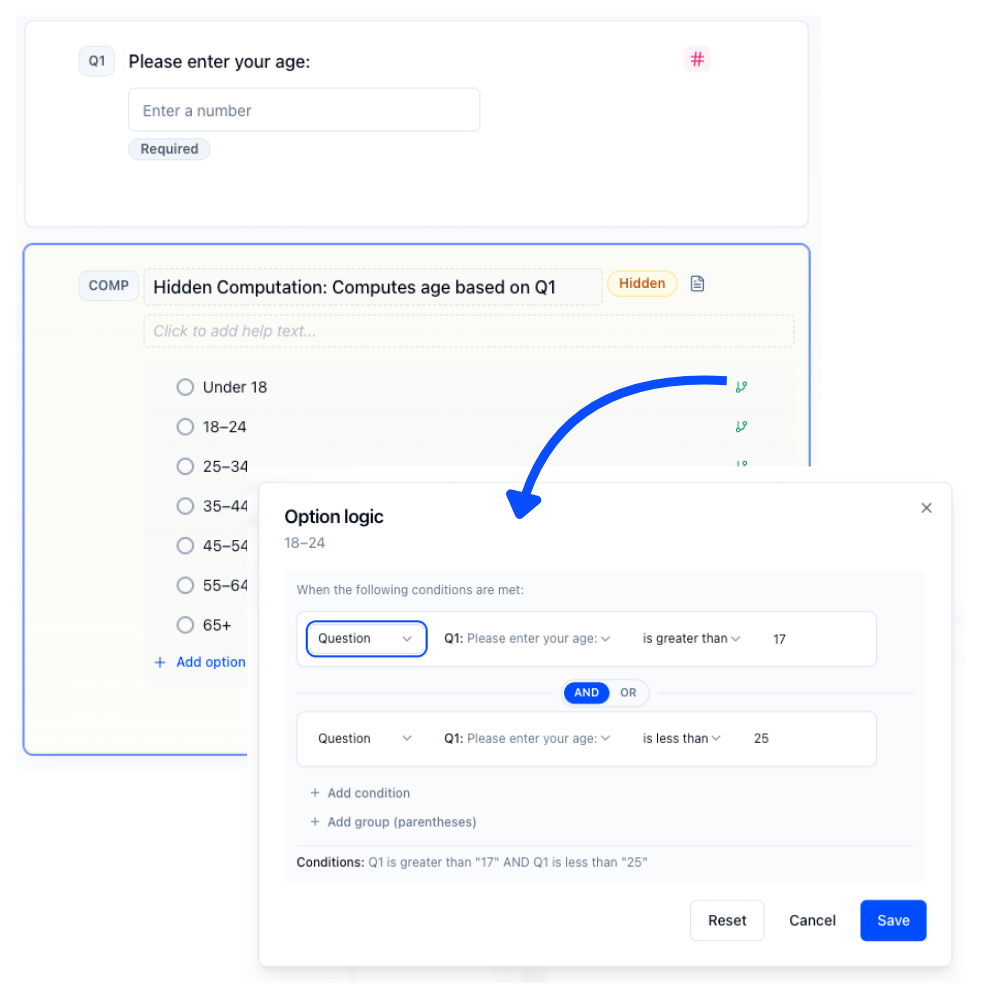
Computed list generates a selected option id (or list of option ids) based on option-level logic.
Computed list can evaluate conditions against most question types, because each option’s condition group uses the same logic/branching operators (for example: answered / not answered, equals / not equals).
Note
Numeric comparisons (for example: greater than, between) are available for numeric-style questions (such as Number, Slider, Rating, and NPS), computed value outputs, and text answers that are numeric.
Selection modes
- Single select (first true)
- Multi select (all true)
- Fixed amount (exactly N)
- Random select
Option logic
Each option can have its own condition group based on earlier answers. Only options whose conditions evaluate to true are eligible for selection.
Option logic does not skip, route, or hide questions. It only decides which option value(s) the computed list outputs.
Note
Computed list outputs option ids internally. Use piping/labels in the UI when you need a human-readable value.
Locking and recompute
Computed questions support:
- Lock after first compute (default)
- Allow recompute
These settings control whether the computed value/list can change after it is first generated.
Tip
In Test mode, you can use the Recompute button to force a computed question to re-run (useful for testing random selection).
Common examples
Total score
If you have four rating questions (Q1–Q4), create a computed value with one expression:
Q1 + Q2 + Q3 + Q4Weighted score
(Q1 * 2) + (Q2 * 0.5)Years and months → total months
Multi-field short text with years in field 1 and months in field 2:
Q1.f1 * 12 + Q1.f2Leave Final output function as None if you only need that one number. Pipe it with Final / sole expression or the expression label in Insert recall.
“Use the first answer that exists”
Add multiple expressions:
Q1
Q2
Then set Final output function to First non-null.
Best for
- Score-based routing (for example, sum of three rating questions)
- Creating eligibility flags (qualified vs not qualified)
- Turning years/months (or similar split inputs) into a single number for logic or display
- Automatically selecting content to show later (via a computed list)
Tips
- Keep formulas readable and verify them in Test mode.
- Prefer stable numeric inputs over free text when you can.
- For split numeric inputs, use
Q#.fNorQ#.iN.aMinstead of hoping bareQ#does the right thing. - When Final = None and you have more than one expression, pipe a specific expression (
.eN)—don’t rely on the bare computed token. - For quota conditions, prefer builder labels for hidden/computed questions; see Quota Management.