
Slider
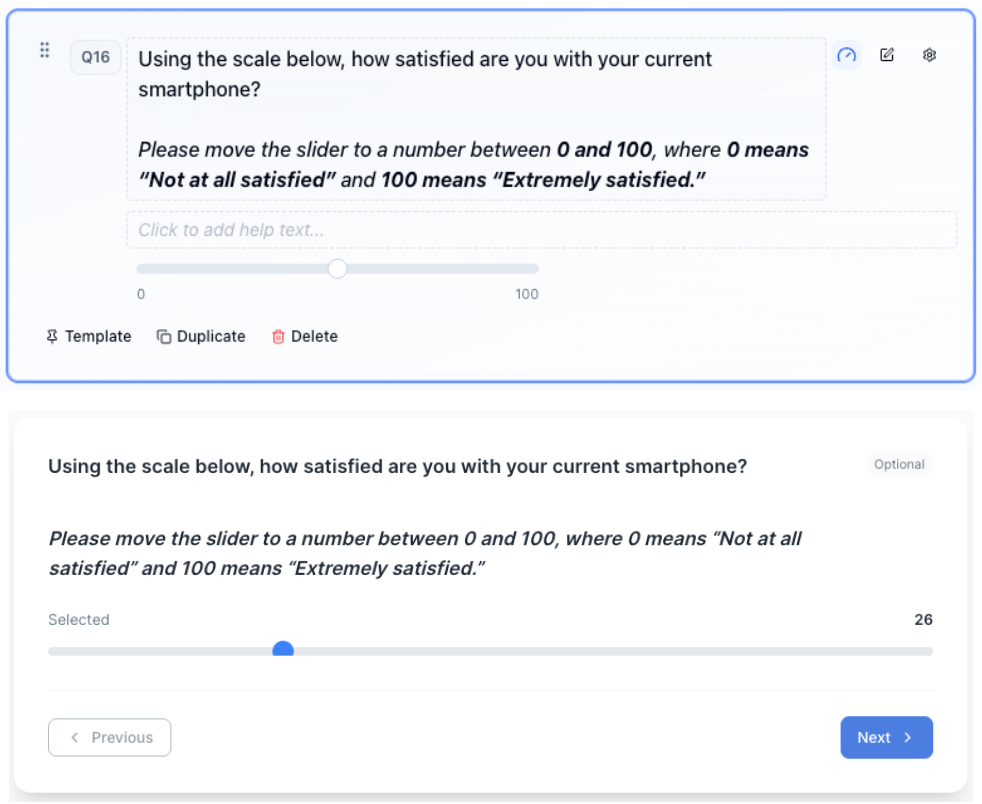
Use Slider when you want a numeric answer with a drag control instead of a typed number.
What it looks like
How to create
1
Open your survey in the Survey Builder.
2
Click Add Question and select Slider.
3
Enter question text.
4
In Properties → Slider settings, choose a Scale preset:
- 0 to 100
- 0 to 10
- 0 to 5
- 1 to 10
- 1 to 5
- 1 to 7
5
(Optional) Under Anchor labels, add text under the ends and the midpoint. Leave blank when you do not need labels.
6
Preview to confirm the range and labels.
Best for
- Approximate values
- Intensity or strength (low → high)
- Ranges where a precise typed number is not necessary
Tips
- Match the scale to how people think about the measure — a 0–10 intensity often reads cleaner than 0–100.
- Use clear endpoint labels when the numbers alone are ambiguous.
- If you need an exact typed number, use Number.