
Short Text
Use Short Text for brief written responses.
What it looks like
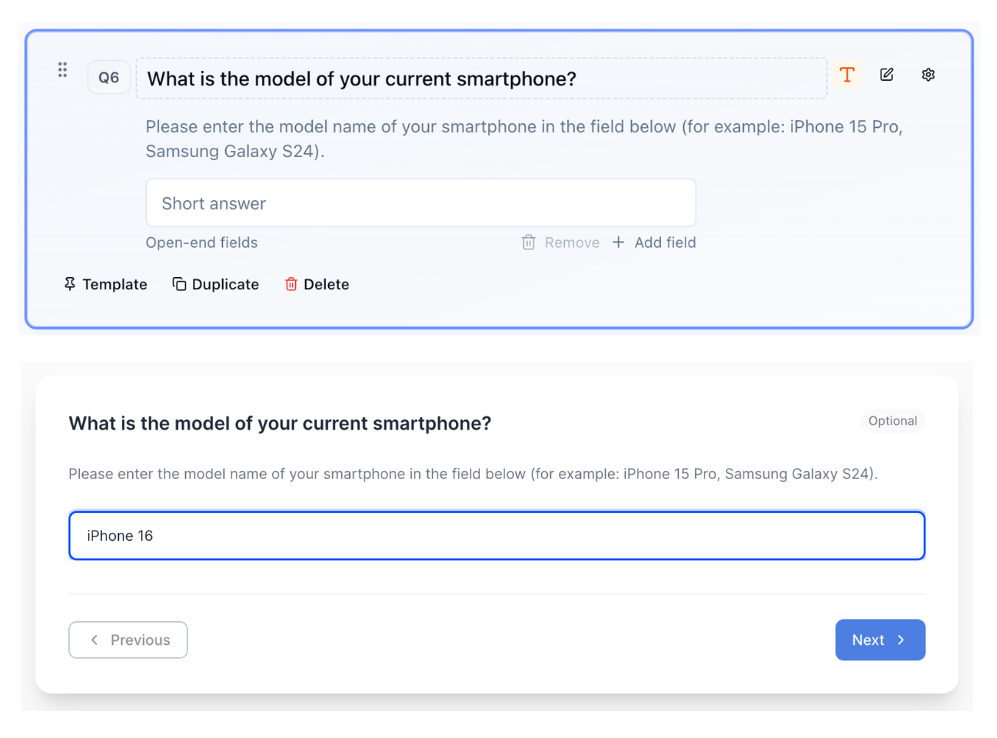
How to create
Open your survey in the Survey Builder.
Click Add Question and select Short Text.
Enter question text.
In Properties, configure Open-end fields:
- Min entries required
- Max entries allowed
(Optional) In Properties, configure Text Validation (see below).
(Optional) In Properties → Exclusive option, enable a “None of the above” / “Not applicable” checkbox under the text fields. See Exclusive option.
Preview to confirm the respondent experience.
Text Validation
In Properties → Text Validation, choose a validation type. Leave it at Default (free text) when you do not need extra checks.
| Validation type | What respondents must enter |
|---|---|
| Character length | Min and/or max characters |
| Word limit | Min and/or max words |
| A valid email address | |
| Whole number | An integer (optional min/max). Allow negative numbers is off unless you turn it on. |
| Decimal number | A decimal (optional min/max and decimal places). Allow negative numbers is off unless you turn it on. |
| Postal Code (Canada) | Canadian postal code |
| Postal Code FSA (Canada) | First three characters of a Canadian postal code |
| Postal Code (Australia) | Australian 4-digit postcode in a known state/territory range |
| ZIP Code (US) | US ZIP code |
| Phone | A phone number |
| URL | A web address |
For Whole number and Decimal number, leave Allow negative numbers off when you only want zero and positive values (age, counts, spend). Turn it on when negatives are valid. Existing surveys that already allowed negatives keep that setting.
For postal and ZIP types, you can enable Strict validation and optionally limit valid codes to specific Provinces or States. Canadian, US, and Australian postal presets can also derive region fields for piping, quotas, and exports (for example province/state and census region) without storing a separate city.
If the question has more than one open-end field, set a question-level rule, then optionally override individual fields under Per-field overrides. Leave a field at Default to inherit the question-level rule.
Empty optional fields still pass. Validation is checked when respondents move forward or submit.
The same validation control is available on other text entry surfaces (Long Text, Contact Form fields, Side by Side text columns, Other Specify text, Hot Spot comments, and similar). See those question articles for where the control appears.
Exclusive options
On the question in the canvas, Add exclusive option puts a checkbox under the text fields. You can add up to 10. Each one starts as None of the above; click the label and rename it. Delete exclusive option removes one.
Selecting an exclusive option clears the text fields. The respondent is answering the checkbox, not the boxes.
In display and skip logic, quotas, triggers, end screens, and saved filters, match that label with equals or does not equal. When either operator is selected, the value list shows your exclusive labels, plus Custom text… if you need to match typed text instead. See Survey Logic & Branching.
Piping multi-field answers
If the question has more than one open-end field, later questions can recall All fields or a specific field from Insert recall / piping. See Piping and Recall.
Best for
- Names
- Short explanations
- IDs or reference numbers
- Email or postal capture when you want format checks without a full Contact Form
Tips
- Ask one clear question.
- If you need detailed feedback, use Long Text.
- Prefer Email validation (or a Contact Form email field) when an email trigger should send to an address collected in the survey.
- With multiple fields (for example years and months), a Computed (Hidden) formula can reference one field as
Q1.f1orQ1.f2.