
Long Text (Open-end)
Use Long Text when you want detailed qualitative feedback.
What it looks like
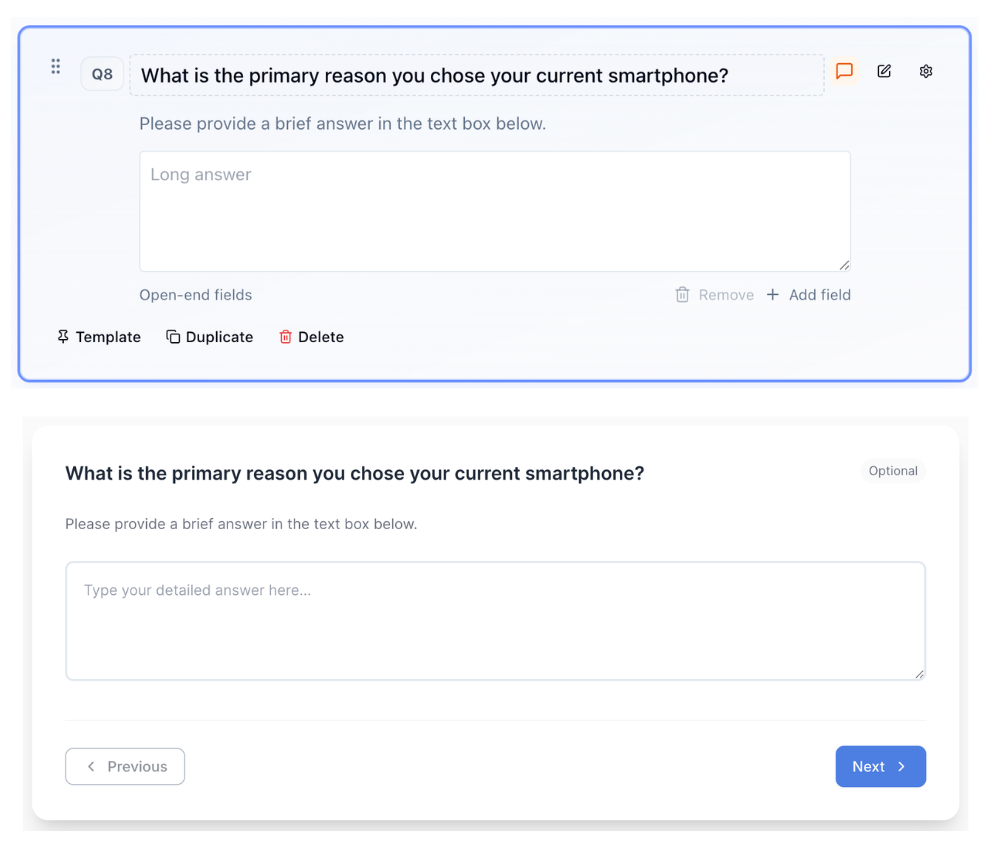
How to create
Open your survey in the Survey Builder.
Click Add Question and select Long Text.
Enter question text.
In Properties, configure Open-end fields:
- Min entries required
- Max entries allowed
Need more than one text box in the same question? Click Add field in the canvas. Each new field gets its own label (Field 1, Field 2, and so on). This is useful for questions like "What did you like, and what would you change?" where you want two separate answers instead of one long one.
(Optional) In Properties → Text Validation, set a question-level rule (character length, word limit, email, phone, URL, numbers, postal/ZIP, and more). For multi-field questions, use Per-field overrides so each field can inherit the question rule or use its own. See Short Text for the full list of validation types.
(Optional) On the canvas, Add exclusive option puts a checkbox under the text fields — up to 10, each with its own label (they start as None of the above). Selecting one clears the text fields. Match that label in survey logic, quotas, triggers, end screens, and saved filters with equals or does not equal.
(Optional) If your package includes it, configure AI probing in Properties (see AI probing below).
Preview to confirm the respondent experience.
AI probing
AI probing (feature-gated) gently asks for more detail on the same Long Text answer box. It does not open a separate chat thread or replace the textarea.
In Properties → AI probing:
- Toggle Enabled
- Choose a Mode (Auto / Configurable / Research grade)
- Set Max turns (1–5)
Auto needs no extra setup. It reads the question and probes for missing detail.
Configurable is the mode to use when you care what gets uncovered, not just that the answer gets longer. Three optional fields appear:
| Field | What it does |
|---|---|
| Objective | The insight the probe should chase. Example: why they abandoned checkout. |
| How to probe | Tone and focus. Example: stay on concrete product features; do not ask about price. |
| Topics | Priority themes, comma-separated. Example: Checkout, mobile navigation, support. Up to 12. |
Leave a field blank if you do not need it. Quali-Fi still probes. These notes steer direction only — they cannot turn the coach into a leading interviewer, pull PII, or override the one-question / fail-open rules below.
Research grade keeps a stricter, more exhaustive probe style. Use it when a thin answer is expensive, not on every open-end in a 20-minute survey.
What respondents experience
- The original question and answer box stay on screen the whole time.
- As they type, a short coach prompt can appear under the box (listening, then a follow-up question).
- Next / Complete stays disabled while a probe conversation is active (thin answer, waiting for more detail, or AI generating).
- Extra detail is written in the same box. The saved answer is whatever is in the textarea — probe replies are not appended as a second field.
- Progress toward the current turn appears once a probe is showing. Addressing a probe (more detail, or a short clarifying clause) can unlock the next turn until Max turns, the answer is rich enough, or the AI stops.
- Mash / off-topic text keeps Next locked with a clear redirect to share a real answer related to the question.
- If they delete below an accepted quality floor, Next can re-lock and probing may resume when turns remain.
- Fail-open: API errors, timeouts, empty optional answers, or an exclusive option selection unlock Next so respondents are never permanently trapped.
AI probing is separate from Open-End Coding Studio (post-collection theme coding). Probing improves answer richness during the interview; coding classifies answers after collection.
Working with multiple fields
Once a Long Text question has more than one field, hover over any field in the canvas to reach its per-field controls:
- Fixed — locks the field's position if you randomize field order.
- Hide — removes the field from the respondent view. The field stays in raw data and exports; you're just turning off collection going forward, not erasing history.
- Delete — removes that one field only. The rest of the question is untouched.
- The branch icon opens display logic for the field, so you can show Field 2 only when Field 1 was answered a certain way, for example.
These controls work the same way across most question types with individual answer pieces — see Option Properties for the full breakdown.
Piping multi-field answers
When a Long Text question has more than one field, use Insert recall / piping on later questions and choose All fields or a specific field. See Piping and Recall.
Best for
- “What worked well / what could be improved” questions
- Explanations and stories
- Follow-ups after a rating or NPS
- Splitting one open-end into a couple of focused fields instead of one big text box
Tips
- Make the prompt specific to improve response quality.
- Use sparingly in long surveys to reduce fatigue.
- If you only need one field, skip Add field — extra fields add friction unless the extra structure is worth it to your analysis.