
Yes/No
Use Yes/No for simple binary decisions.
What it looks like
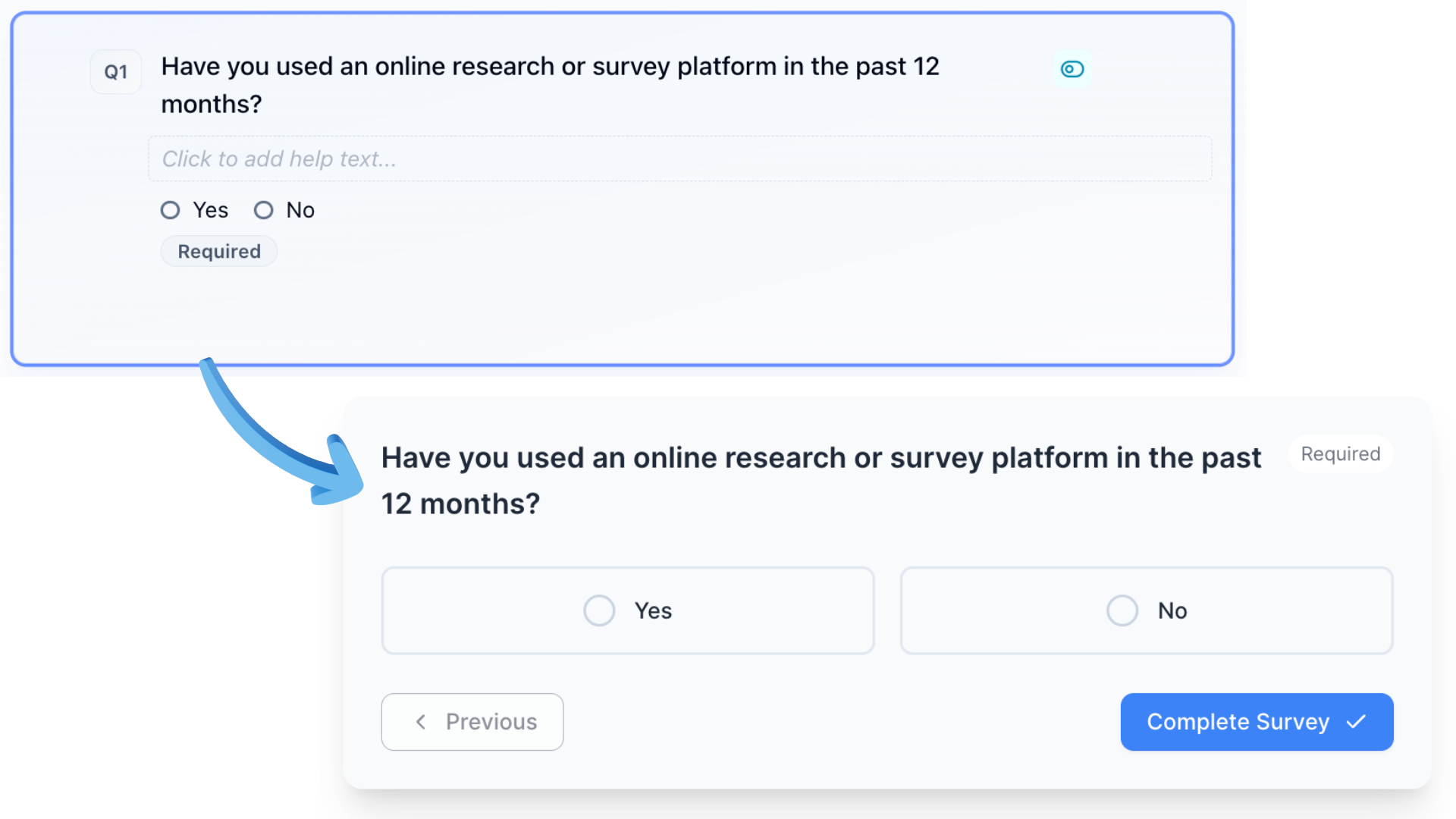
How to create
1
Open your survey in the Survey Builder.
2
Click Add Question and choose Yes/No.
3
Enter question text.
4
Set whether the question is required, then preview.
Best for
- Qualification checks
- Consent confirmations
- Simple screening questions
Use Yes/No in logic
Yes/No is a proper choice source in display logic, skip logic, end-survey rules, quotas, and filters.
In the condition builder, pick the Yes/No question and compare to Yes or No. Do not look for option IDs — those are not how this type stores a match.
Example: if Do you live in the United States? equals No, then End survey and mark Screened Out.
Tips
- If the respondent might need nuance, add a follow-up Short Text question.
- For screening, write the logic against Yes/No itself. A Single Choice with "Yes" / "No" labels works, but you will fight option IDs for no gain.