
Autosuggest
Autosuggest provides a type-to-search experience for very long option lists.
What it looks like
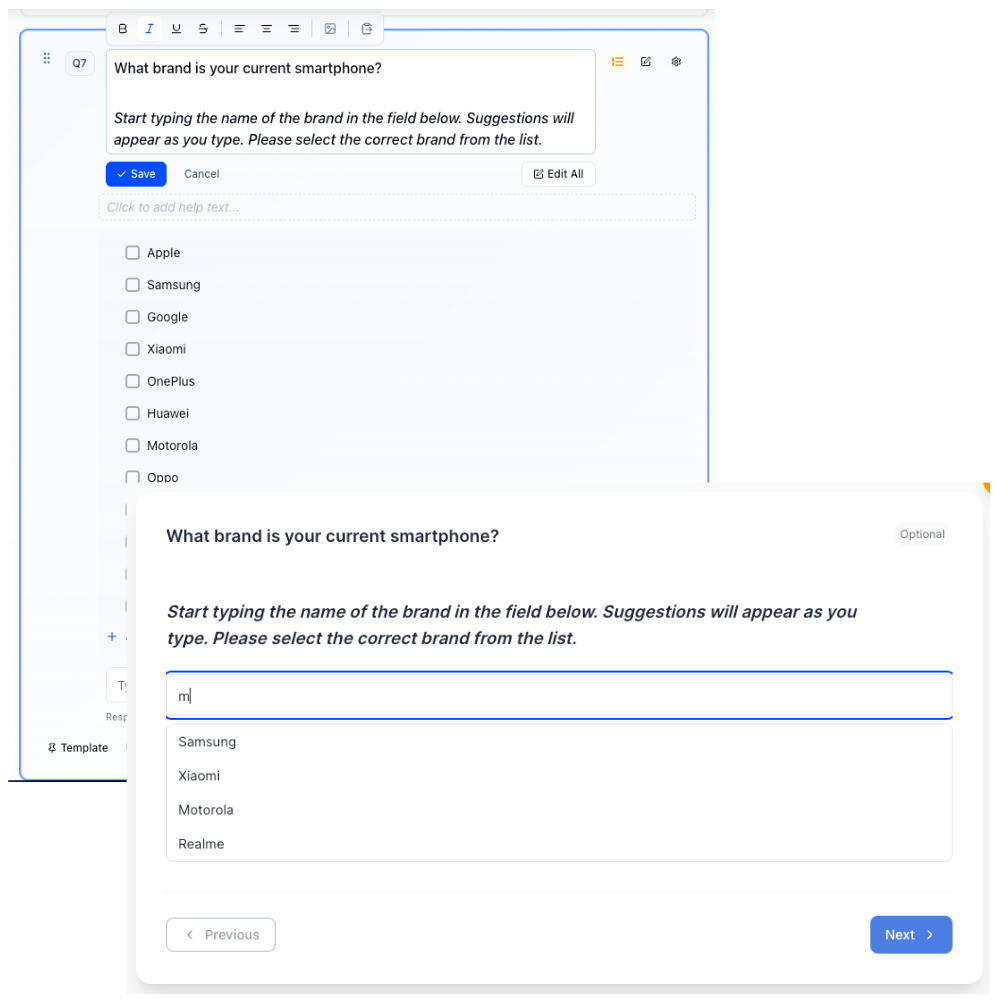
How to create
Open your survey in the Survey Builder.
Click Add Question and select Autosuggest.
Enter question text.
Add your option list (this works best with long lists). Use Bulk edit to paste many options at once; see Bulk Edit Choice Lists.
(Optional) In Properties, under Autosuggest Settings, set Selection mode.
Single is the default. Respondents pick one option from the filtered list.
Multiple lets them pick more than one match. Min selections and Max selections appear only in that mode. Leave them blank to use the defaults: minimum is 1 when the question is required, otherwise 0, and there is no maximum until you set one. Max cannot exceed the number of answer options.
In Multiple mode you can also branch on number selected (equals, at least, between, and related operators) in Display Logic. See Survey Logic & Branching.
(Optional) In Properties, you can enable Randomize options.
Preview to confirm the search and selection experience.
Best for
- Brands/products catalogs
- Cities/locations
- Any list where scrolling would be slow
Tips
- Use clear, recognizable labels.
- If the respondent needs to compare choices visually, use a standard list instead.