
Single Choice
Use Single Choice when you need respondents to select exactly one option.
What it looks like
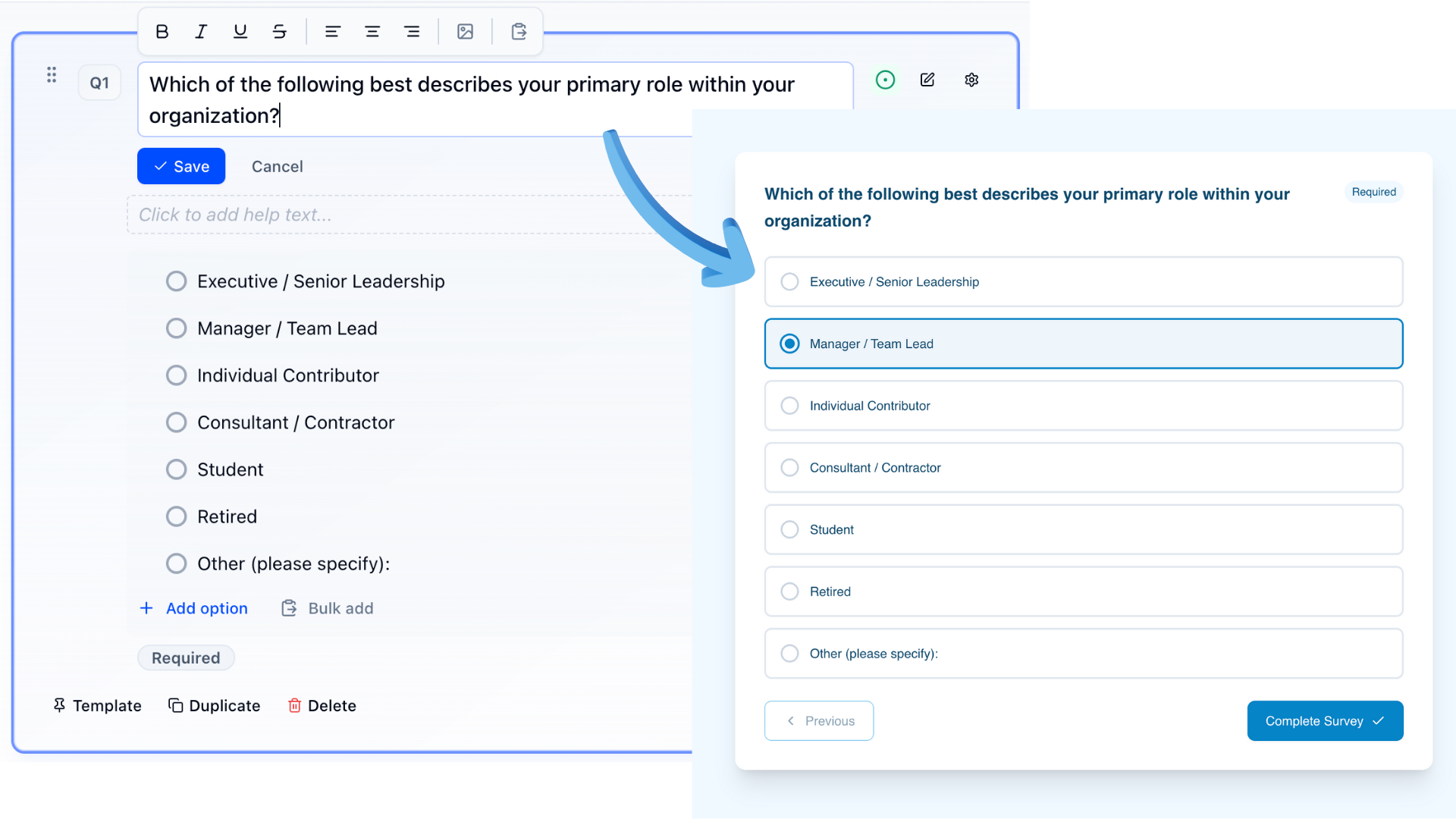
How to create
1
Open your survey in the Survey Builder.
2
Click Add Question and select Single Choice.
3
Enter your question text.
4
Add and label your options. Use Bulk edit to paste many at once (see Bulk Edit Choice Lists). (Optional) enable Other if needed; you can set Other Text Validation in Properties.
5
Set whether the question is required, then preview to confirm the layout.
Choice List Display
In Properties, under Choice List Display, set Columns to how you want options arranged:
- 1 (single column) — the default, one option per row
- 2 columns, 3 columns, or 4 columns — useful for longer lists on desktop and tablet
On phones, options stack into fewer columns automatically so the list stays readable. Preview on a narrow width after you change this setting.
Best for
- Demographics (role, age range)
- Preference questions with one clear answer
- Qualification questions
Tips
- Keep options mutually exclusive.
- Use an “Other” option only when you truly can’t list all answers.
- For long lists (7+), consider Dropdown or Autosuggest.
- Use Add group plus Randomize groups when you need labeled blocks of choices. See Option Properties.