
Contact Form
Use Contact Form to collect contact details in a structured format.
What it looks like
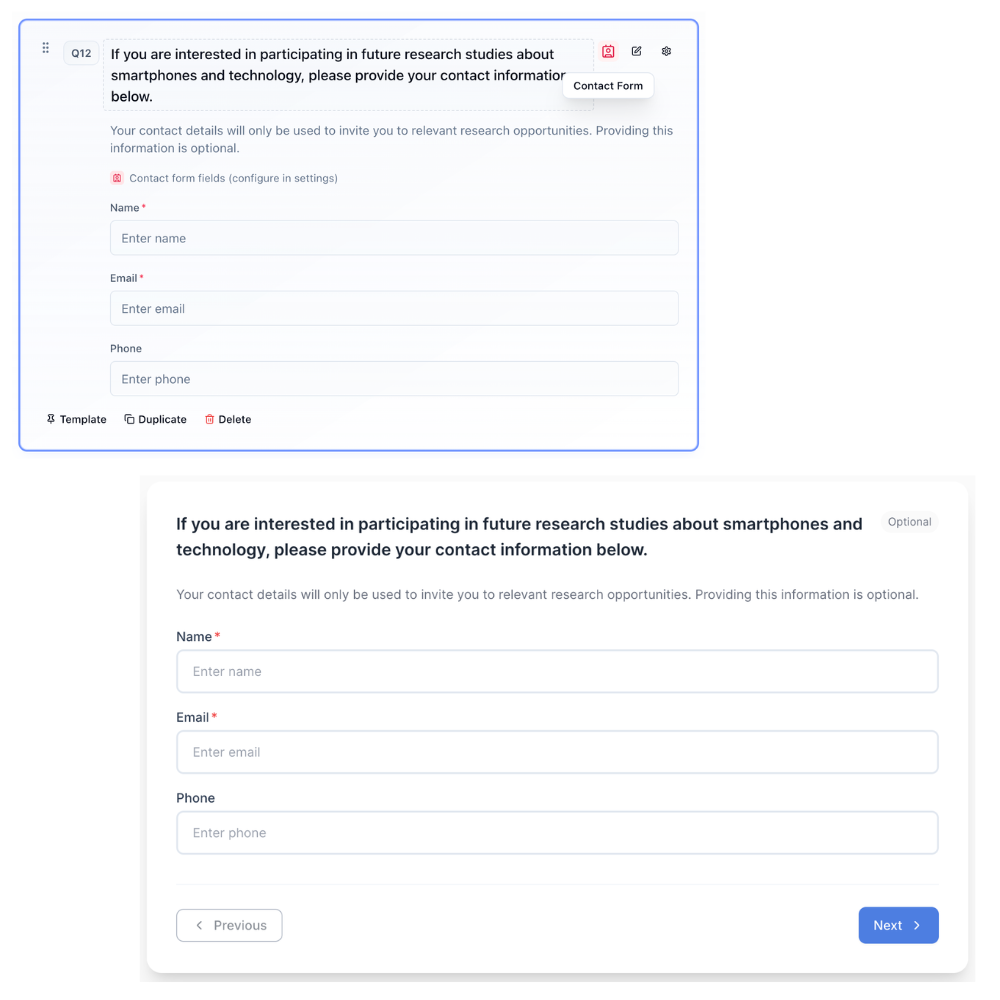
How to create
1
Open your survey in the Survey Builder.
2
Click Add Question and select Contact Form.
3
Enter your prompt explaining what information you need.
4
In Properties, configure Form Fields:
- Toggle fields on/off (for example: Name, Email, Phone, Address, Website)
- For enabled fields, configure:
- Label
- Type (Text, Email, Phone, URL, Multi-line, Number, Country, State/Province, Postal Code)
- Required
- Field validation (optional) for text-like fields: character length, word limit, email, phone, URL, numbers, postal/ZIP, and more. Built-in Email / Phone / URL field types already expect that format; use Field validation when you need extra rules (for example character length on a custom field). See Short Text.
- Add new fields with + Add Custom Field
5
Preview to confirm the form fields appear correctly.
Best for
- Follow-up recruitment
- Incentive delivery coordination
- Optional contact capture
- Collecting an email that survey email triggers can send to via Send to email collected in survey
Tips
- If the survey should be anonymous, avoid collecting direct identifiers.
- Consider making contact fields optional unless strictly required.
- Prefer the built-in Email field type when triggers or follow-ups need a reliable address.