
Rank Order
Rank Order asks respondents to arrange items from most to least important/preferred.
What it looks like
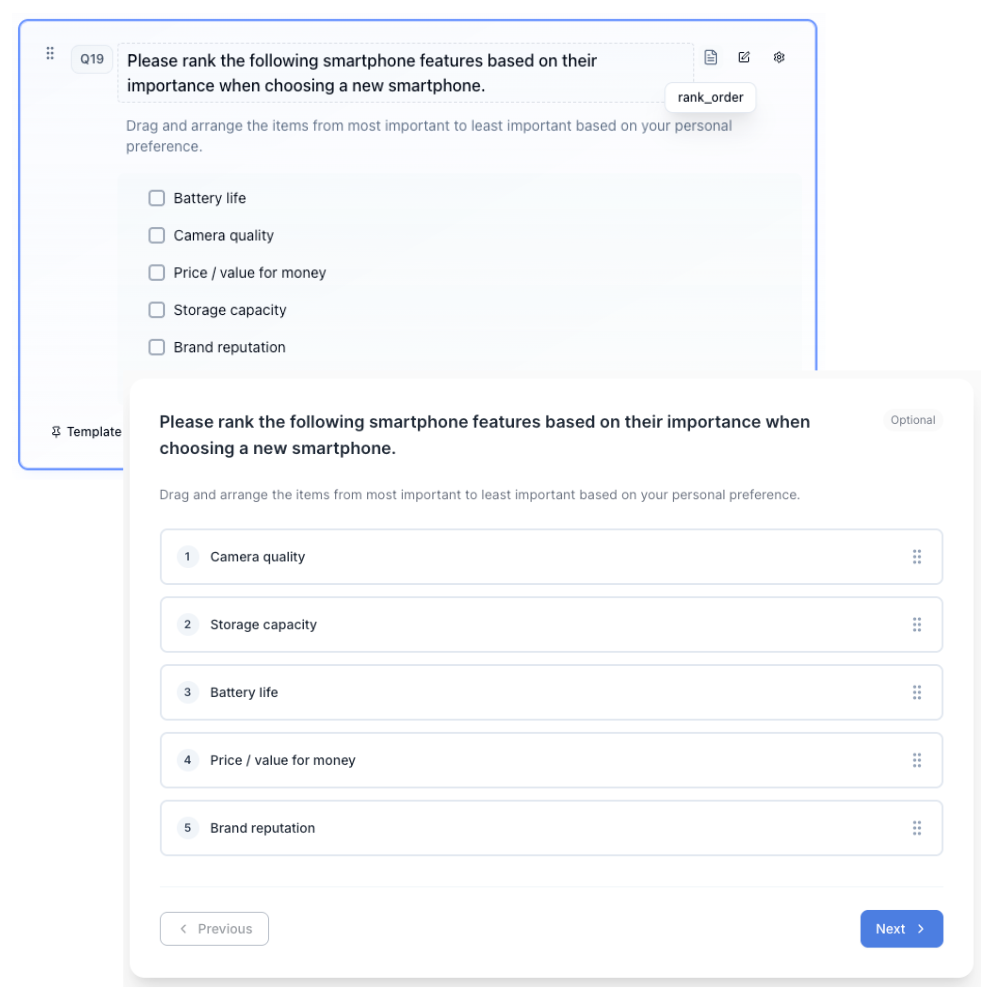
How to create
Open your survey in the Survey Builder.
Click Add Question and select Rank Order.
Enter your prompt and add the items to be ranked (these are the question options). Use Bulk edit when you have a long list; see Bulk Edit Choice Lists.
(Optional) In Properties, set Max items to rank if you only want respondents to rank their top choices instead of every item. Leave it blank to require ranking everything.
(Optional) In Properties, enable Randomize options.
Preview and test the reorder interaction.
Ranking your top choices (Max items to rank)
Set Max items to rank in Properties to turn Rank Order into a top-N exercise — for example, "rank your top 3 of 8 features." When it's set:
- Respondents get a two-column layout on desktop: available items on one side, their ranking on the other, filled by dragging items across.
- On mobile, the same top-N question becomes click-to-rank instead of drag-and-drop.
- If the question is required, respondents must rank exactly that many items — no more, no fewer.
Leave Max items to rank blank for a full ranking of every option, which uses the standard drag-to-reorder list on both desktop and mobile.
Option display and hide controls
Hover an item in the canvas to use the same per-option controls as other choice lists:
- Set option visibility logic (branch icon) — show or hide that item based on earlier answers
- Hide from respondents — remove the item from what respondents see while keeping it in raw data
- Other Specify, Exclusive, and Fixed when those apply
See Option Properties for how Hide, Fixed, and related controls behave.
Piping ranked items
You can recall a respondent's rankings elsewhere in the survey. From the Insert recall / piping menu on any question text, prompt, or other rich text field, find this question and choose:
- All ranked items — inserts the full ranked list as a single piped value (for example, "Speed, Price, Support").
- Rank #1, Rank #2, and so on — inserts just the item in that position.
If an item uses Other Specify, those write-in recalls appear in the same rank submenu (for example All other-specify texts, or each other option by name).
If you used Max items to rank, only the ranked subset is available to recall. A position the respondent never ranked has nothing to pipe. See Piping and Recall for more on inserting recall tokens.
Using rankings in logic
You can show, hide, skip, or end based on how respondents ranked items. In the condition builder, pick this Rank Order question and use operators such as is ranked, is not ranked, is ranked in top, and is ranked in bottom.
Example: show a follow-up when "Brand A" is ranked 1st.
See Survey Logic & Branching for details.
Best for
- Prioritization exercises
- Feature ranking
- Preference ordering
Tips
- Limit to ~5–7 items.
- If you have many items and need better discrimination, consider MaxDiff.
- For long lists, Max items to rank (top 3–5) is usually easier for respondents than ranking everything.