
Constant Sum
Constant Sum asks respondents to split a fixed total (for example, 100 points) across options.
What it looks like
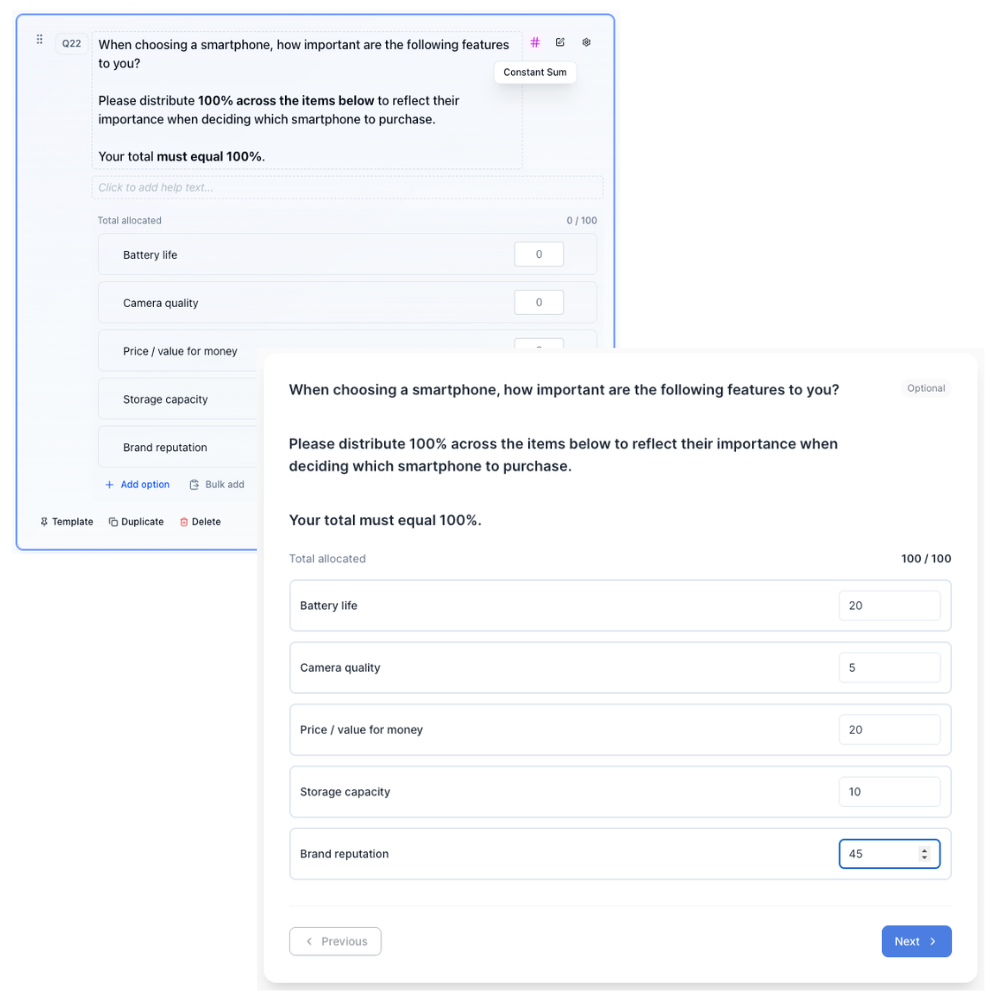
How to create
1
Open your survey in the Survey Builder.
2
Click Add Question and select Constant Sum.
3
Enter your prompt and add options. Use Bulk edit for long lists; see Bulk Edit Choice Lists.
4
In Properties, configure Constant Sum Settings:
- Enforce total: require allocations to equal the total before continuing
- Total (for example, 100)
5
Hover over an option in the canvas for its per-option controls:
- Other Specify: adds a text box under the option. A respondent who allocates points to it is prompted to type what "other" means. Use Require text when selected when that write-in must be filled before continuing. In Properties you can also set Other text validation (see Short Text and Option Properties).
- Exclusive: turns the option into a "none of the above" choice. Allocating any amount to it clears and disables the rest.
- Fixed: keeps the option in place if you randomize option order.
- Hide: removes the option from respondents without deleting it.
- Option visibility logic (branch icon / Set option visibility logic): show or hide that option from earlier answers. If you use group headers, a header hides when none of the options in that group are visible.
- The trash icon deletes the option outright.
See Option Properties for how these behave across question types.
6
Preview and test that the total allocation rules behave as expected.
Note
Hidden options and any Other Specify text stay in raw data and exports even after you hide the option from respondents.
Best for
- Trade-off analysis
- Budget allocation
- Importance weighting
Tips
- Keep the number of options small.
- Add an Information Block explaining the rules.
- Use Exclusive sparingly. One "none of the above" style option is usually enough.