
Matrix
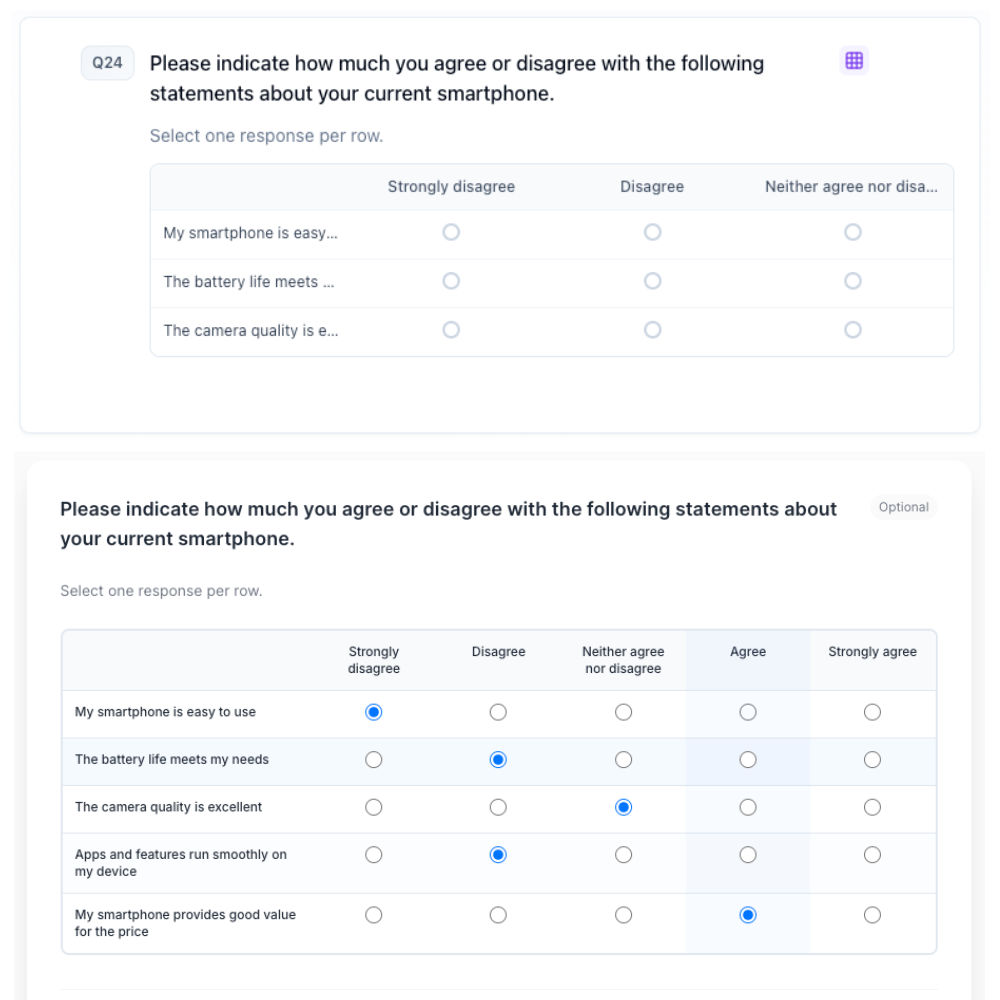
Matrix questions let respondents rate multiple items on the same scale.
What it looks like
How to create
Open your survey in the Survey Builder.
Click Add Question and select Matrix.
Enter question text.
Add your columns (these are the question options).
Select the Matrix question in the canvas, then edit Matrix Rows inline to configure your row items.
(Optional) In Properties, set Cell display to change how respondents answer each cell. See Cell display formats below.
(Optional) In Properties, turn on Flip rows and columns when the layout fits. See Flip rows and columns.
(Optional) In Properties, enable Randomize rows (shuffle rows within each group) and/or Randomize groups (shuffle group blocks when you use group headers). The two toggles are independent.
If you use Matrix (Multi-Select), set Max selections per row in Properties. See Matrix (Multi-Select).
(Optional) In Properties → Freeze headers, turn on Freeze first row so column titles stay visible while the page scrolls. Freeze first column (row labels stay visible while scrolling sideways) is on by default. Desktop grid only — the mobile card layout does not change.
Preview on desktop and mobile.
Cell display formats
By default, Matrix cells show as Standard buttons (radio/checkbox). In Properties → Cell display, you can switch to:
- Dropdown — each row becomes a dropdown; useful for grids with a long list of columns.
- Slider — respondents drag a slider per row instead of picking a discrete option.
- Stars — a star-rating control per row.
- Animated sliding toggle — an animated switch, best for two-point or short scales.
- Scale per row — each row is drawn as its own horizontal scale, with the row label above it.
Cell display applies to the whole question. You cannot mix formats row by row.
On a single-select matrix, every option above replaces the button grid. On Matrix (Multi-Select), Dropdown and Scale per row do. Slider, Stars, and Animated sliding toggle leave the checkbox grid in place, because those formats store one column per row.
Flip rows and columns
In Properties, Flip rows and columns shows rows as columns and columns as rows on screen. Answers still save against the original rows and columns — flipping changes layout, not the codebook.
It is available for Standard buttons (radio/checkbox) and Scale per row. It is not available for Dropdown, Slider, Stars, or the sliding toggle (Animated sliding toggle).
Rows and columns
Rows and columns are configured separately:
- Rows live in the Matrix Rows panel on the canvas. Hover a row to Hide it (removed from respondents, still in raw data), mark it Fixed (excluded from row randomization), set row-level display logic, or delete it. Use Add row or Bulk edit to add, replace, or remove several rows at once (optional row codes supported). See Bulk Edit Choice Lists.
- Group headers — click Add group in the Matrix Rows panel to insert a non-answerable section label (for example “Brand A attributes” then the rows under it). Headers are never answered, do not appear as answer columns in analytics/exports, and are skipped in piping summaries where appropriate. Drag headers with their rows to keep blocks organized.
- Columns are the question's options, so they use the same controls as any other choice list: Other Specify, Exclusive, Fixed, Hide, and delete. Use Bulk edit for long column lists. See Option Properties for details.
Randomize rows vs randomize groups
| Setting | What it shuffles |
|---|---|
| Randomize rows | Selectable rows within each group (or the whole list if you have no headers) |
| Randomize groups | Entire group blocks (header + its rows) relative to each other |
Fixed rows and fixed headers pin position (or the whole block) when randomization is on. You can use either toggle alone or both together.
In Properties, you can also set text validation for Other write-ins on columns and, where shown, validation related to rows. See Short Text.
Hide a choice for specific rows
Sometimes one column doesn't apply to every row — for example, "N/A" only makes sense for certain statements. On a column, use Hide this choice for row(s) to hide that one answer option for just the rows you check. The row and column both stay in the survey; only that specific cell is hidden from the respondent.
Piping Matrix answers
You can recall Matrix answers elsewhere in the survey. From Insert recall / piping, find this question and choose:
- All rows — every row’s answer in one piped value
- A specific row — just that row’s selected column label(s)
- Other-specify write-ins when a column uses Other Specify (same submenu)
For full details, see Piping and Recall.
Freeze headers
Wide grids lose people when the scale or the row labels scroll off screen. In Properties → Freeze headers:
| Setting | Default | What stays put |
|---|---|---|
| Freeze first row | Off | Column titles stay visible while the respondent scrolls the page |
| Freeze first column | On | Row labels stay visible while they scroll sideways |
These apply to the desktop grid. Phones already use a card layout, so freeze does not change mobile.
Turn Freeze first row on for long attribute lists. Leave Freeze first column on unless you have a reason to let row labels scroll away.
Many columns
Matrix grids with a lot of columns scroll horizontally on the respondent's screen, especially on narrower viewports. Freeze first column keeps the row text in view while they scroll. If the grid is still too wide, trim columns, split the question, or switch to a Matrix (Multi-Select) with Dropdown cell display.
Best for
- Comparing several statements on one scale
- Satisfaction across multiple attributes
Tips
- Keep it short (typically 5–7 rows) to avoid fatigue.
- Consider splitting into multiple pages for long lists.
- If you have many columns, try Dropdown cell display to cut down on horizontal scrolling.