
Multiple Choice
Use Multiple Choice when you need respondents to select more than one option from a list.
In Quali-Fi, this question type is labeled Multiple Choice in the Survey Builder.
If you need respondents to select only one option, use:
What it looks like
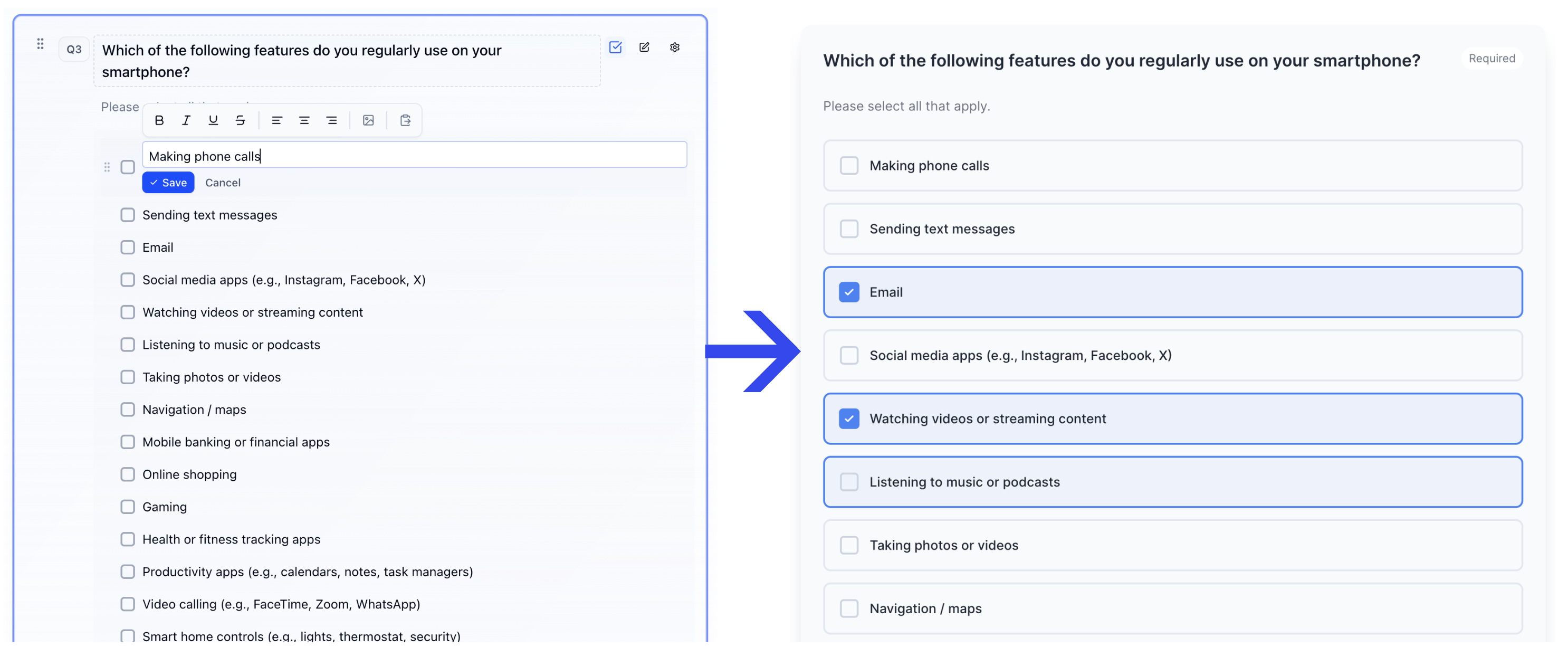
How to create
Open your survey in the Survey Builder.
Click Add Question and select Multiple Choice.
Enter your question text.
Add and label your options. Use Bulk edit for long lists (see Bulk Edit Choice Lists). (Optional) enable Other if needed; you can set Other Text Validation in Properties.
Set whether the question is required, then preview to confirm the layout.
Choice List Display
In Properties, under Choice List Display, set Columns to how you want options arranged:
- 1 (single column) — the default, one option per row
- 2 columns, 3 columns, or 4 columns — useful for longer lists on desktop and tablet
On phones, options stack into fewer columns automatically so the list stays readable. Preview on a narrow width after you change this setting.
Best for
- “Select all that apply” questions
- Multi-attribute questions (features used, channels preferred)
- Behavior and usage questions (tools used, platforms used)
- Checklists and screening criteria where multiple items may be true
Tips
- Use clear instructions like “Select all that apply” when multiple selections are allowed.
- If too many selections would reduce data quality, set a maximum selection limit (if available in your builder).
- Consider adding None of the above when appropriate.
- If you have more than one Other Specify option, each selected Other keeps its own write-in. Recall a specific Other (or all of them) with Piping and Recall.
- For long lists (7+), consider Autosuggest. If only one answer should be allowed, use Single Choice.
Exports and selection order
When you export responses, Multiple Choice answers can be laid out in several ways. See Survey Analytics for the full export workflow.
| Layout | When to use it |
|---|---|
| Single Column (CSV) | One cell with all selections and a delimiter |
| Separate Columns / Dichotomized | One 0/1 column per option |
| Assigned Codes / Assigned codes | One column per allowed selection (Qn_1, Qn_2, …) with option codes in the order the respondent selected them |
Assigned codes layouts preserve mention order — useful for unaided lists, brand funnels, and any analysis that cares which option was picked first, second, or third.
In other words
- Multiple Choice allows respondents to pick more than one option.
- If you only want one answer, use Single Choice.