
Calendar
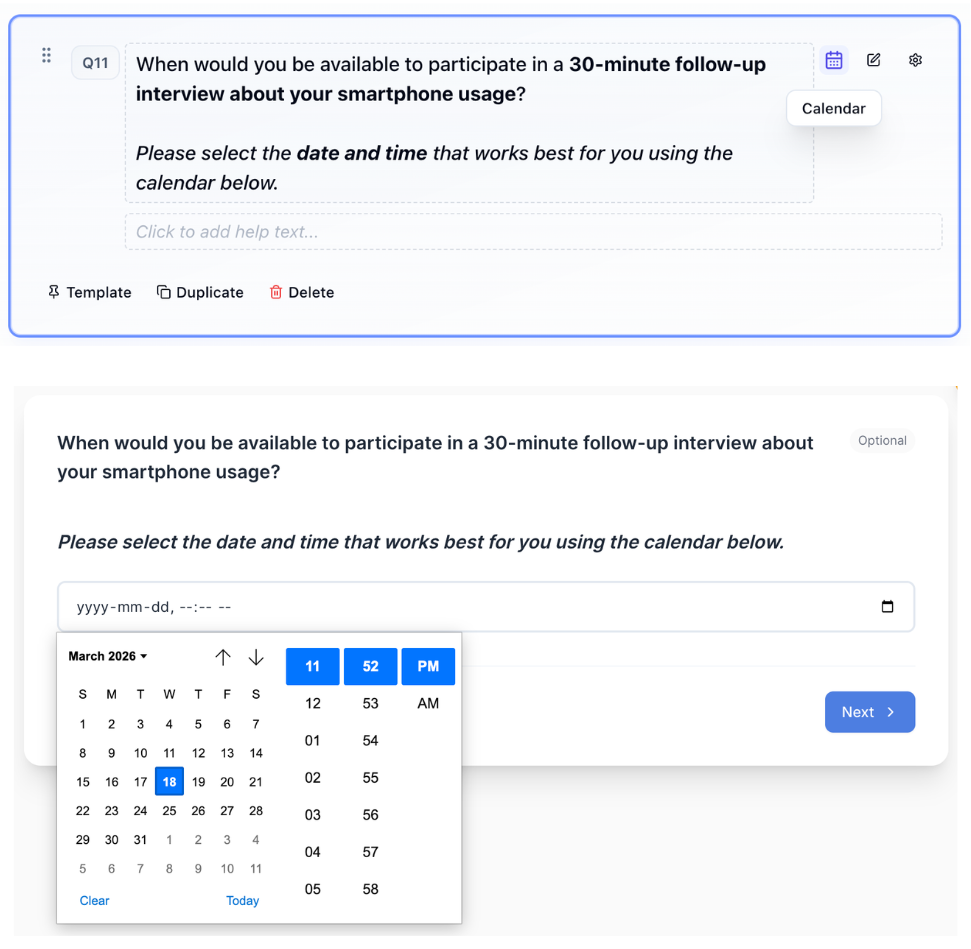
Use Calendar when the time of day matters (date + time).
What it looks like
How to create
1
Open your survey in the Survey Builder.
2
Click Add Question and select Calendar.
3
Enter your prompt (include time zone expectations if relevant).
4
In Properties, configure Calendar Settings (optional):
- Notification emails (comma-separated)
- Timezone (defaults to the respondent's browser timezone)
- Duration (minutes)
- Email subject
- Email body (supports placeholders like {{surveyTitle}}, {{questionNumber}}, {{datetime}}, {{timezone}}, {{durationMinutes}}, {{responseId}})
5
Preview to confirm date/time selection works as expected.
Best for
- Scheduling calls or sessions
- Collecting availability
Tips
- Keep the instructions clear (time zone expectations, duration).
- If you only need a date, use Date.