
Quick Start Guide
Welcome to Quali-Fi! This guide will help you get started with the platform in just a few minutes. By the end, you'll have created your first project and be ready to collect valuable research data.
Tip
If you're new to market research platforms, don't worry! Quali-Fi is designed to be intuitive and easy to use, even for beginners.
What You'll Learn
- How to log in to your Quali-Fi account
- Navigate the Quali-Fi platform
- Create your first project or activity
- Understand the core features available to you
Step 1: Access Quali-Fi
Navigate to your organization's Quali-Fi URL (e.g: https://yourcompany.qfiapps.io/cc). You'll see the login screen:
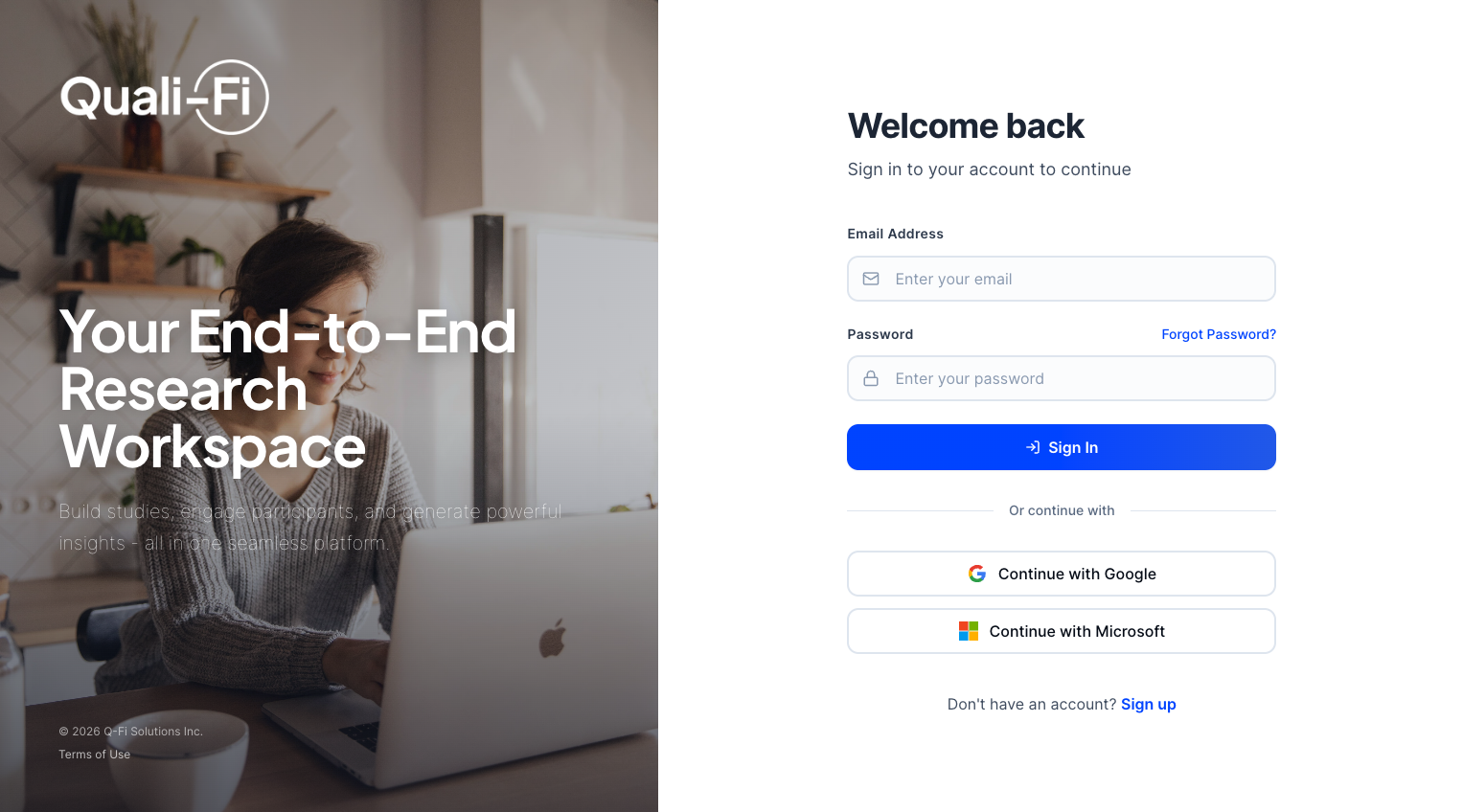
When your organization has Admin Branding enabled, the sign-in, sign-up, and password-recovery pages show your logo, brand colors, and hero artwork on the left (desktop) or as a mobile header logo. SSO buttons appear when your organization allows them.
Enter your credentials and click Sign In. If you don't have an account yet, contact your organization administrator.
Tip
Do not register for a new account if you are part of an organization that already has a Quali-Fi account, you need to be added by the admin to the main organization account.
Step 2: Explore the Dashboard
After logging in, you'll be taken to a dashboard view based on your preferences and permissions.
- If you've used Quali-Fi before, you'll usually return to the last dashboard you were viewing.
- If this is your first time (or your access changed), you'll see the default dashboard for your account.
You will see one of these dashboard types:
- Operations Dashboard - Quick access to your active work and recent updates
- Manager Dashboard - High-level organization and activity summary
- Panel Dashboard - Member and portal insights (when enabled for your organization)
If you have access to more than one dashboard type, you can switch using the Select Dashboard dropdown on the Organization Dashboard page.
Step 3: Create Your First Project
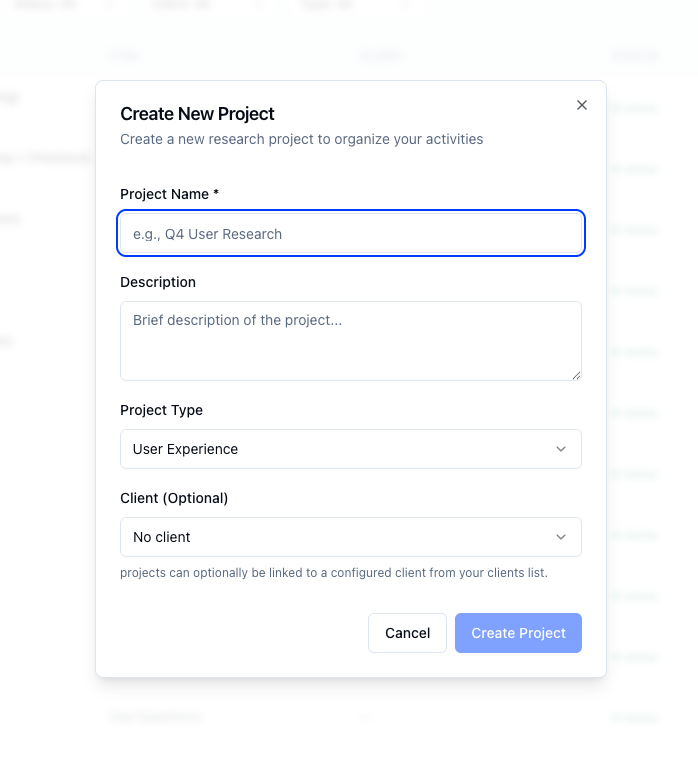
Projects are containers that help you organize related research activities (for now they are more geared towards the Video Focus Group and Video Interview project types). If you would like to create one now, here are the steps:
Click the New Project button in the top-right corner of the projects page.
Enter a project name and description. For example:
- Name: "Customer Satisfaction Q1 2026"
- Description: "Quarterly customer feedback survey and follow-up interviews"
Select a project type or just select other.
Select a client if you have any created.
Click Create Project to finish
Step 4: Add Your First Research Activity
With your project created, you can now add research activities. Quali-Fi supports several types:
Available Activity Types
- Surveys - Collect quantitative and qualitative data through questionnaires
- Video Focus Groups - Conduct live video discussions with participants
- Video Interviews - One-on-one video conversations with respondents
- Polls - Quick single-question surveys for fast insights
- Discussion Boards - Asynchronous text-based discussions
- Diaries / Journaling - Track participant experiences and behaviors over time through structured diary entries
Note
Start with a simple survey to get familiar with the platform. You can explore more advanced features like video focus groups once you're comfortable.
Next Steps
Congratulations! You've completed the quick start guide. Here's what to explore next:
- Setting Up Your Account - Configure your profile and preferences
- Creating Your First Project - Detailed project setup guide
- Creating Surveys - Build your first survey
- Survey Health - Review completion time, logic, and design suggestions in the builder
- Rhoxi Research Agent (Beta) - Conversational research workspace (limited-release beta)
- ChatGPT and Claude Connectors - Manage surveys from ChatGPT or Claude (when enabled for your org)
Tip
Need help? Use the search bar at the top of this page to find answers, or visit our contact page to reach our support team.
Common Questions
How do I reset my password?
Click "Forgot Password" on the login screen and follow the email instructions.
Can I import data from other platforms?
Yes! Quali-Fi supports importing participant lists and survey data. See our data import guide for details.
Is there a mobile app?
Quali-Fi is fully responsive and works great on tablets and mobile devices. A dedicated mobile app is currently not available.