
Creating Video Interviews
Video Interviews let you run one-on-one live interview sessions. You create a project (a “series”), generate sessions, invite participants, and then join each session when it’s time.
Tip
If you want members to schedule their own time for a live interview session, see Setting up a Video Interview with Participant Scheduling.
Tip
If you want to invite members via a survey and automatically send scheduling links after survey completion, see Sending Video Interview Scheduling Invitations via Survey Triggers.
What are Video Interview projects?
A Video Interview project is a container for a set of interview sessions.
Each project includes:
- A series title and optional description
- A target number of interviews
- A scheduling approach (fixed schedule or participant self-scheduling)
- A participant invitation method (members, external emails, or a public link)
How to create
Tip
If you already know how you want to invite participants, use a guide dedicated to that workflow:
Open the Video Interviews module from your dashboard.
Click New Project.
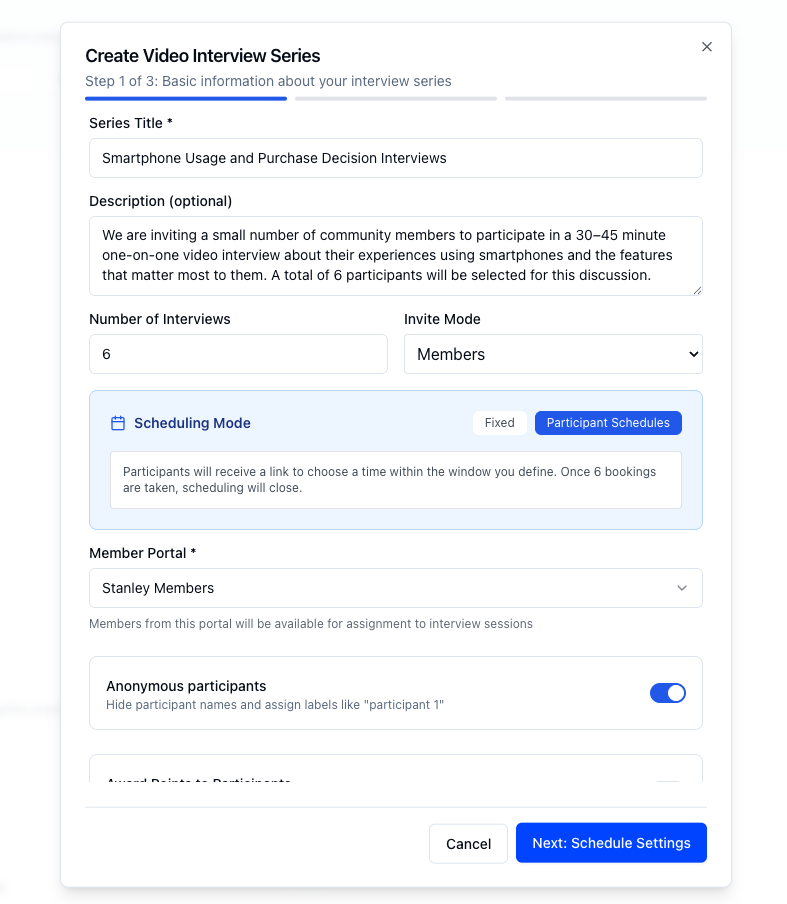
In Step 1 of 3, enter:
- Series Title
- Description (optional)
- Number of Interviews
- Invite Mode
- Share Link
- Email Invite List
- Members (requires a Member Portal)
In Step 1 of 3, choose a Scheduling Mode:
- Fixed (you define session times)
- Participant Schedules (participants choose a time within a window)
If using Members, select the Member Portal for the project.
(Optional) Configure:
- Anonymous participants
- Assign Observers (Optional)
- Email Reminders (24 hours before is always enabled; you can add up to two additional reminders)
If using Participant Schedules, configure:
- Moderator Assignment (Single moderator / Multiple moderators — random / Multiple moderators — segment-based)
- In Step 2 of 3, set schedule rules:
- Window Start and Window End
- Allowed Hours Start and Allowed Hours End
- Slot Duration (minutes)
- Timezone
- Allowed Days
If using Fixed scheduling, in Step 2 of 3 choose:
- Automatic (set First Session Date + Start Time + interval)
- Manual (schedule sessions later from the Sessions page)
Click Create Video Interview.
Where to go next
After creating a project:
- Use the project’s Sessions page to manage session times and start/join interviews.
- Use Discussion guide (when enabled) to build your moderator outline for the series.
- Use Results to review completed sessions.
- Use Insights for aggregated analytics across the project.
Next Steps
- Managing Interview Sessions - Schedule sessions and start interviews
- Discussion Guides for Video Interviews - Build your moderator guide
- Managing Interview Responses - Review and analyze submissions
- Interview Analytics (Insights) - Insights from your data